

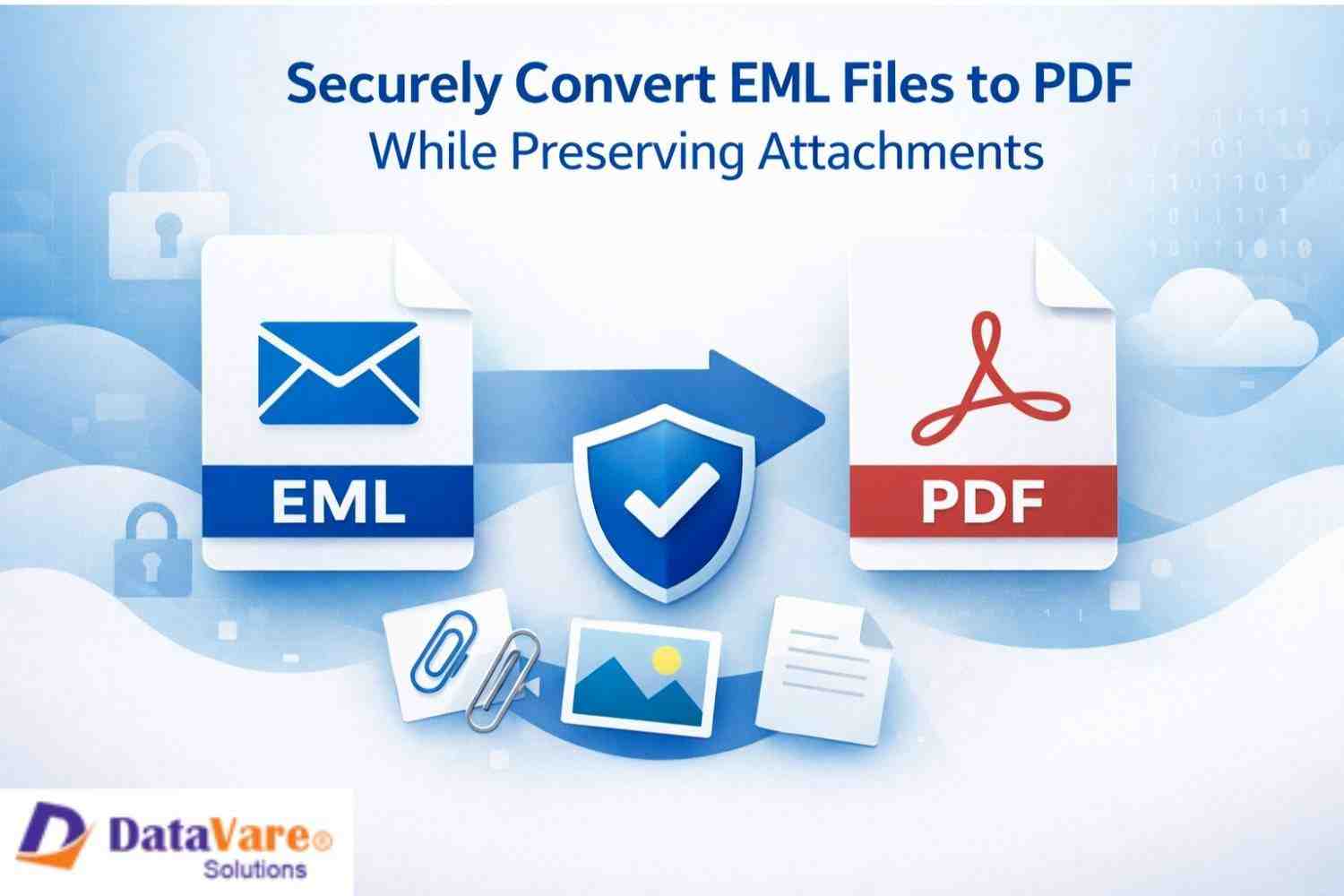
EML file works great with their supportive email client, but the issues that I mostly faced with these files are that I can’t access them on my phones, and other devices that don’t support EML file and I can’t carry my PC everywhere, which makes the situation complex. Another problem is that the format of the EML file changes according to the platform or the email client I’m using, which is quite confusing. If you are facing all these issues related to EML file and want to convert EML files to PDF without any data corruption or loss while keeping the attachment intact, then you are at the right place as this article is all about how you can convert EML to PDF using manual method and a professional method with their detailed steps, limitations, and some frequently asked questions, which will give you clarity over which method is more suitable for you. So let’s get started.
First, it’s necessary to know how converting an EML file to PDF will be a helpful approach for you, which you can read below:
Here are some reasons why one should convert their EML file to a PDF file:
• EML files require a particular email client to access them, but on the other hand, PDF files are easily accessed on any device, like phones, laptops, computers, and more.
• PDF files are effortless to search and manage as they are named and stored neatly in a proper folder.
• Format of EML files changes according to different platforms, but PDF file structure and layout stay the same for everyone.
• PDF files can be locked with passwords and made read-only to prevent accidental or intentional changes, which can’t be done with EML files.
• Even after the software updates or changes PDF file stays the same, which makes it ideal for long-term storage.
If you are a technical expert with complete knowledge in tech, you should go for manual methods, as you can simply browse and find multiple ways to move your EML file to PDF for free and access them anywhere with a good internet connection and a supported application. These methods are perfect for handling single or a few emails manually.
Precautions: Email formatting might break, attachments will not be included, technical skills are required, not suitable for bulk emails, and you must verify the PDF after conversion.
Requirements: Windows or Mac, an email program that supports EML files, a built-in Print to PDF option, basic knowledge of file extensions, access permissions to files, and a stable internet connection.
1. Find the EML file on your computer that you want to convert.
2. Double-click and open the file in an email client of your choice.
3. Examine the email content carefully.
4. Go to the print option, click File>Print.
5. Choose the PDF printer instead of a physical printer.
6. Select a folder and save the email as a PDF.
1. Make a copy of the original EML file.
2. Rename the EML file extension .eml to .html
3. Right-click the file and open it in the browser.
4. Scroll and check if the email content looks correct.
5. Go to the browser Print option by Ctrl P or Cmd + P
6. Select Save as PDF and adjust print settings.
7. Lastly, save the file as a PDF, and you’re done.
In this part, I’ll list the limitations that you should be aware of before opting for the manual methods:
1. These two methods are ideal for single and light EML files, but they can’t handle multiple heavy EML files and can lead to data corruption.
2. You have to handle attachments of the EML file separately, as manual methods don’t automatically move attachments.
3. As you have to run each process manually one by one, this increases the chances of human error, missing details, or saving incorrect files.
4. If you are working with multiple large EML files, the process can take hours and days to complete, which makes it time-consuming.
5. It doesn’t guarantee data integrity or preserve file formatting or structure, which can confuse users once the conversion is done.
If you want to move your EML file emails to PDF format while preserving all the attachments with it, then I personally suggest you try this expert-recommended professional DataVare EML to PDF Converter, as it quickly exports all your files to PDF format while maintaining data integrity with attachments and the structure of email files intact. This utility is specially designed to work efficiently on all versions of Windows be it the latest or older versions and it is fully compatible with both ANSI and UNICODE versions of MS Outlook. Below I have listed some of its key features that will help you understand the tool better.
• Offers a free demo version with 24/7 customer support.
• Handles multiple heavy EML files trouble-free.
• Saves exported data locally according to your liking.
• Fully standalone utility, no need to install an extra app.
• Maintains data integrity, email properties, structure, and attachments.
• Conversion is done just by following 5 easy steps.
• Supports all versions of Windows and Outlook.
• Has an intuitive and self-explanatory GUI for all users.
• Converts selective and multiple EML files in one go.
• No restrictions on the file size of the EML file.
Follow these simple steps to run this tool:
1. Download and launch the tool on your system.
2. Add the EML file or folder.
3. Get a preview of each item in the preview pane.
4. Set the output file location.
5. Lastly, hit the Convert Now button.
In this article, I have mentioned all the possible ways to convert your EML file data to a PDF file, which you can perform easily, but some methods can ensure your data and attachments are secure, while others can’t. Manual method is good in its own way, costs nothing and is within the reach of everyone, but it requires tech skill and comes with data errors, can misplace your attachments, is time-consuming, and depend which can hinder your workflow. Unlike it is a professional method that works smartly without any manual handling, maintains your attachments, data integration, email properties, and structure during the process with full accuracy, and the best part is that there is no file size restriction with this tool. As your EML file data must be valuable, choosing the right methods is quite important, as one mistake can lead to great loss so you should try the trial version of the professional tool, which is free and check the capability of the tool by working with all its features before investing in the full version.
1. Which method is ideal for beginners without any technical skills?
Both methods are helpful, but if you are a beginner without much tech expertise, you should go for the professional methods as it has less chance of data corruption or file loss and are easy to use.
2. Do I need internet connectivity to run this software?
For manual process, intent is necessary, but with a professional tool, there is no need of internet as it works locally.
3 Can I trust this tool with all my sensitive data?
You should back up your data if you are converting your email manually, but you can trust the professional tool with your data.

© 2025 Crivva - Hosted by Airy Hosting Managed Website Hosting.