

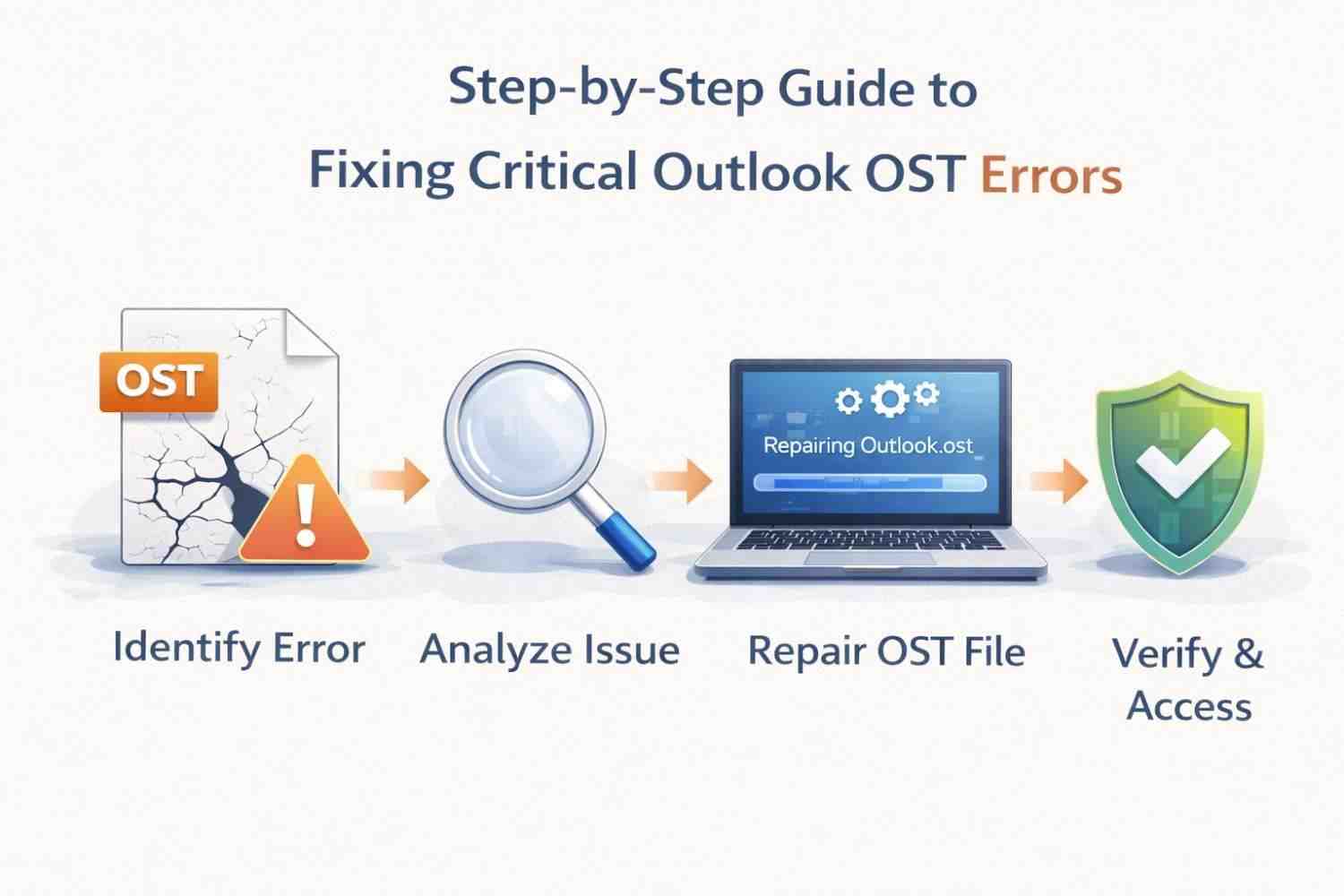
Many users use Microsoft Outlook for business and professional communication. When it works right, it keeps your emails, calendars, contacts, and tasks perfectly in sync. But when serious OST file errors happen, they can suddenly stop you from getting to your mailbox and mess up your work.
In this guide, we will explain three major Outlook OST errors in detail:
You’ll learn what these mistakes mean, why they happen, and how to fix them one step at a time.
When you set up an Exchange, Microsoft 365, or IMAP account in Outlook, an OST (Offline Storage Table) file is created. It keeps a copy of your mailbox on your local system that is always up to date.
This allows you to:
Once the connection is back up, sync the changes.
Outlook may show important errors when this file is corrupt or inaccessible.
Outlook can’t read the OST file format, which causes this error to happen. It usually means that the file is corrupt, that it was changed in the wrong way, or that the file extension is wrong.
Outlook is basically saying, “This file does not look like a valid Outlook data file.”
Check that the file is in the right Outlook folder.
To add a new profile and set up the account again, go to Control Panel, then Mail, then Show Profiles.
If the Exchange account is still open:
If the file is very damaged and can’t be rebuilt, you might need to convert it (more on that later).
When Outlook tries to open the OST file but finds that it is locked by another process, this error happens. Windows doesn’t let more than one program control the same file at the same time.
Press Ctrl + Shift + Esc to finish all Outlook tasks.
A reboot clears memory locks and services that run in the background.
Press Windows + R and then type “outlook.exe /safe.”
If Outlook opens without any problems, turn off any add-ins that you don’t need.
Delete the current OST file (after backing it up) and then restart Outlook to make a new one.
This is one of the most common and serious problems with Outlook. In most cases, this means that Outlook can’t get to the mailbox or the data file that goes with it.
It might show up with more messages, like:
Make sure your internet connection is stable, and you can get to the Exchange server.
A new profile often fixes problems with settings.
To turn off Cached Mode, go to Account Settings, then Change, and then restart Outlook.
Delete the OST file and make a new one if you think it might be corrupt.
Making a new profile or deleting the OST file often fixes the problem. But these methods only work if one important thing is true: the mail server must be up and running.
If Outlook can’t connect to the Exchange or Microsoft 365 server again, it won’t be able to rebuild the OST file. This happens a lot when
Outlook won’t make the file again, even after you delete it in these cases. That means the OST file is the only place where your data is stored.
The OST file needs to be changed into a format that can be used, like PST, in order to get that data back.
PST files are separate data files, while OST files are not. You don’t need to be connected to a server to open them in Outlook.
You can access emails without an Exchange server by converting OST files to PST files. You can also recover mailbox data from orphaned and corrupt OST files without losing any data.
PST files let you access mailbox content directly instead of relying on server synchronization.
For situations like this, there is a special tool called the OSTFileExporter OST to PST Converter. It can read OST files that are inaccessible, orphaned, or corrupt and extract the mailbox data into a PST format that can be used.
After the process is finished, you can access your mailbox data on its own, without needing to connect to the original Exchange server.
A Critical Look at Errors in OST, like:
It can stop you from getting work done and be very annoying. Some problems can be fixed by recreating a profile, restarting services, or rebuilding the OST file, but some situations need a more advanced recovery method.
Knowing what each error means and why it happened helps you find the right fix. You can get back into your mailbox and stop data loss by taking the right steps.

© 2025 Crivva - Hosted by Airy Hosting Managed Website Hosting.