

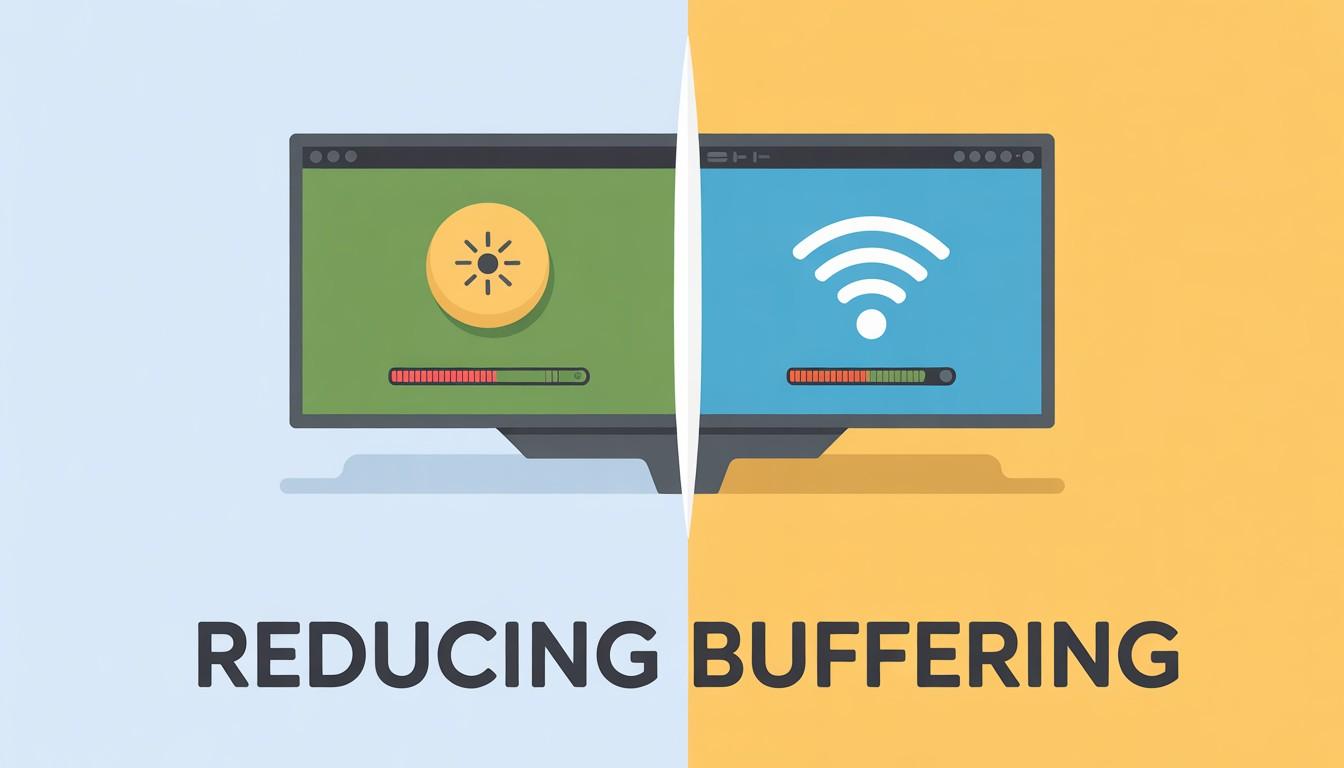
You press play on your favorite show, and then it happens: the spinning wheel of frustration. Buffering. Whether you’re streaming a movie, joining a video call, or watching YouTube, constant interruptions can ruin the whole experience.
If you’ve ever wondered, “Why does my internet buffer so much?” or “How can I fix buffering on my device?” you’re not alone. The good news is you don’t need to be a tech expert to solve it.
This guide outlines simple, practical, and effective ways to reduce buffering on any device, whether you’re using a smartphone, laptop, smart TV, or tablet.
Before fixing the issue, it helps to understand what’s causing it. Buffering usually happens when your device can’t download data quickly enough to keep playback smooth.
Common causes include:
Start with the basics. Run a quick speed test to see if your connection meets your streaming needs.
Recommended speeds:
If your speed is below these ranges, buffering is almost guaranteed. This makes it harder to reduce buffering during streaming.
It sounds simple but it works surprisingly often.
This clears temporary glitches and refreshes your connection.
Distance and obstacles (walls, furniture) weaken your signal.
Quick fixes:
Better signal = smoother streaming.
Too many devices using the same network can slow things down.
Try this:
This frees up bandwidth for your current activity.
Streaming in 4K on a slow connection means you’re likely to experience buffering.
Switch to:
You may sacrifice a little quality but gain a much better experience.
Wi-Fi is convenient, but Ethernet is more stable.
This reduces lag, improves speed, and minimizes buffering.
Over time, apps store temporary data that can slow performance.
On your device:
This often fixes playback issues instantly.
Outdated apps can cause glitches and buffering problems.
Make sure:
Updates often include performance improvements and bug fixes.
Too many apps running at once can slow your device.
This helps your device focus on streaming smoothly.
If buffering happens often, even after you’ve tried everything, it might be time for an upgrade.
Consider:
This is especially important if multiple users share your connection.
Old or low-quality routers can bottleneck your speed.
Upgrade options:
This ensures strong coverage across your entire space.
VPNs can slow down your connection due to encryption and rerouting.
If you’re streaming:
If it does, consider a faster VPN service.
Some internet providers slow your speed after you reach a certain amount of data usage.
Signs include:
Switching to an unlimited plan can solve this.
Many platforms allow you to adjust playback settings.
Look for:
These features automatically adjust quality to prevent buffering.
Sometimes the issue isn’t your internet, it’s the platform.
This helps identify whether the problem is external.
Buffering doesn’t have to ruin your streaming experience. With the right changes, like improving your internet speed, optimizing your device, and managing your network, you can enjoy smooth, uninterrupted playback on any device.
The key is to find the source of the problem and apply the right solution. Start with simple steps like restarting your router or lowering the video quality. Then consider upgrades if necessary.
Once you adjust your setup, you’ll spend less time waiting and more time watching.
1. Why does my video keep buffering even with fast internet?
Even with high speeds, buffering can occur due to network congestion, weak Wi-Fi signals, or device performance issues. Internet speed is only one part of the streaming experience. If many people are using the network at the same time, your connection may slow down temporarily. Distance from the router, outdated apps, or an overloaded device can also interrupt smooth playback.
2. Does lowering video quality reduce buffering?
Yes, streaming at lower resolutions uses less data, which makes playback smoother on slower connections. High-definition formats like 4K or 1080p require a lot more bandwidth than 720p or standard definition. If your connection is unstable or shared with other devices, lowering the video quality uses less data and helps the stream load faster without interruptions.
3. Is Wi-Fi or Ethernet better for streaming?
Ethernet is more stable and faster, making it the better choice for buffer-free streaming. A wired connection sends data directly from your router to your device, which reduces interference, signal loss, and network changes. Wi-Fi can still work for streaming, but walls, distance from the router, and other wireless devices can sometimes weaken the signal.
4. Can too many devices cause buffering?
Absolutely. Having multiple devices connected to the same network can lower available bandwidth and cause buffering. Each connected device takes up part of the internet connection for tasks like streaming, gaming, downloading files, or video calls. When several devices are active at the same time, your network may struggle to provide enough bandwidth for smooth video playback.
5. How often should I restart my router?
Restarting your router once a week can help it run well and reduce connection issues. Over time, routers can slow down because of temporary system glitches, memory overload, or long uptime. A quick restart clears cached data, refreshes the connection to your internet provider, and often restores stable performance for all connected devices.

© 2025 Crivva - Hosted by Airy Hosting Managed Website Hosting.