


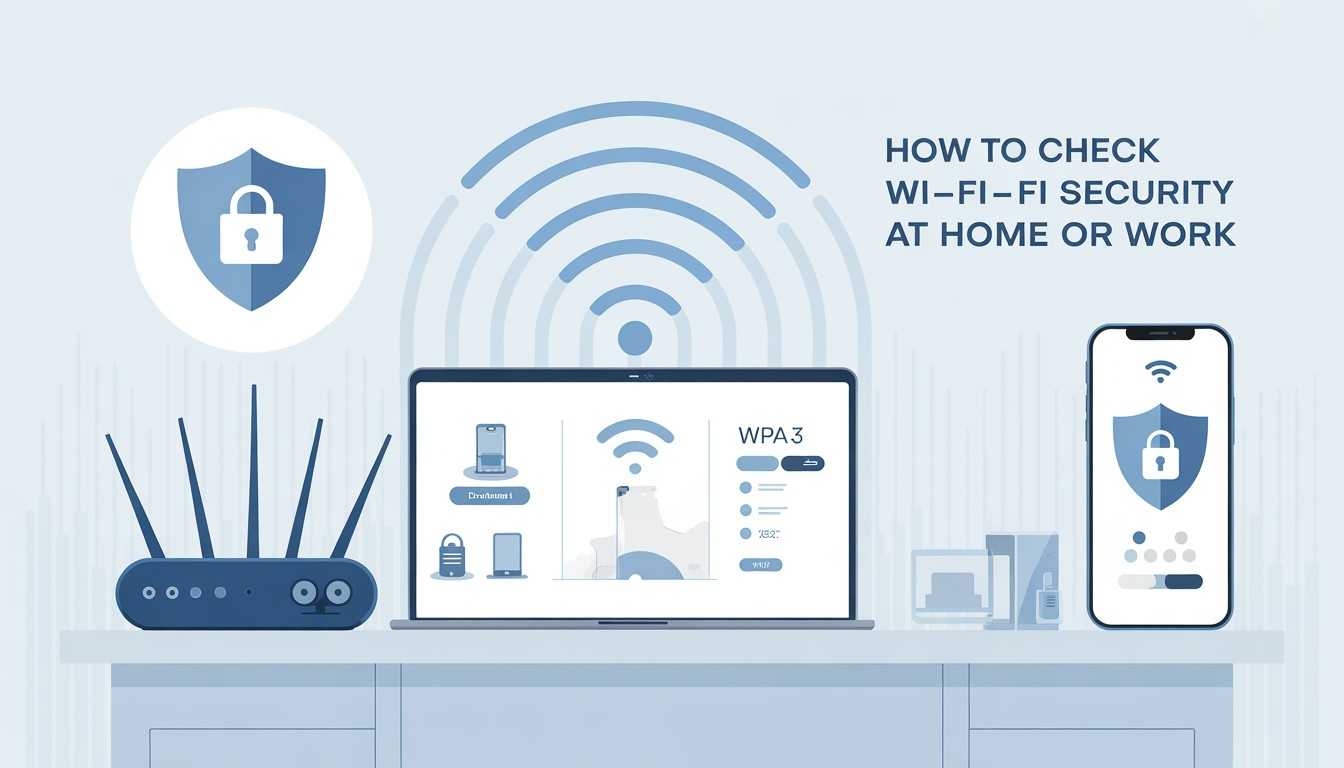
You lock your doors. You protect your phone with a PIN. But what about your Wi-Fi?
Most people think their home or office Wi-Fi is safe just because it has a password. The problem is that this is often not enough. Weak Wi-Fi security can quietly expose your personal data, work files, passwords, and even connected devices without any obvious warning signs.
If you’ve ever wondered, “Is my Wi-Fi safe?” or “How do I check Wi-Fi security at home or work?”, you’re in the right place. This guide walks you through simple, practical steps to check Wi-Fi security, even if you’re not a tech expert.
No jargon. No fear tactics. Just real clarity.
Wi-Fi networks are prime targets for hackers because they provide access to your personal and work data. Once hackers gain unauthorized access, they can:
This risk affects home Wi-Fi networks and is even more serious in workplaces. Sensitive business data and customer information are often at risk.
The good news is that you don’t need advanced tools to spot weak Wi-Fi security. By knowing what to look for and regularly checking your settings, you can find vulnerabilities early and greatly lower your risk.
The first and most important step in checking Wi-Fi security is to confirm the encryption standard your network is using. Encryption determines how securely your data is protected while moving between devices and your router.
How to Check:
What You Want to See:
What to Avoid:
If your network uses older encryption, updating this one setting can quickly and significantly improve your Wi-Fi security without affecting performance.
Your Wi-Fi password serves as the front door to your network. Even with strong encryption, a weak password can make your network open to unauthorized access.
Ask Yourself:
A Secure Wi-Fi Password Should:
If your password is something like HomeWiFi123, it’s very weak and should be changed right away to a stronger one.
Reviewing connected devices helps you spot unauthorized access or forgotten devices that don’t need network permissions anymore.
How to Do It:
What to Look For:
If you spot anything suspicious, disconnect it right away and change your Wi-Fi password to prevent further access.
Router firmware updates are often overlooked, but they play a critical role in protecting your network from known threats.
Why Firmware Updates Matter:
How to Check:
In work or shared environments, keeping firmware up to date is especially important. Outdated routers are common targets for network breaches.
WPS may sound convenient, but it is one of the biggest Wi-Fi security risks still enabled on many routers today. It was designed to simplify device connections, but its weaknesses outweigh its benefits.
Why WPS Is Dangerous:
What to Do:
Disabling WPS closes a common attack path and immediately strengthens Wi-Fi security for both home and workplace networks.
Your Wi-Fi network name might accidentally give away important information to attackers. Many people choose SSIDs that show personal or business details.
Risky SSID Examples:
These names make your network easier to identify and target.
Best Practice:
This small adjustment doesn’t affect usability but adds an extra layer of privacy and reduces unwanted attention.
Your router has its own admin login separate from your Wi-Fi password, and many users never change it. This is a serious security risk.
If You’ve Never Changed Them:
That’s a problem. Default router credentials are widely available online and among the most commonly exploited entry points.
Fix It:
Securing router access helps prevent attackers from taking full control of your network.
If your router supports multiple networks, setting up a guest network is a simple but powerful security improvement.
Why This Matters:
Guest networks are especially important for small offices, remote workers, and households with frequent visitors.
You don’t need advanced tools or technical expertise to check your Wi-Fi security. Even basic scans can uncover serious issues.
Options:
These tools can flag:
Even a quick scan can reveal hidden vulnerabilities and help you fix problems before they’re exploited.
Watch out for these warning signs that could indicate unauthorized access or misconfigured settings:
If you see any of these red flags, make sure to check your Wi-Fi security settings right away. Acting quickly can help stop data theft, privacy breaches, or more network issues.
Checking Wi-Fi security at home or work doesn’t need advanced technical skills. It just takes awareness and a few simple checks.
By reviewing encryption, passwords, connected devices, router updates, and access settings, you can close the most common security gaps and protect your data before problems arise.
Think of Wi-Fi security like locking your doors at night. You may never experience a break-in, but when protection is easy, there’s no reason not to use it.
You should review your Wi-Fi security at least once every 3 to 6 months. It’s also important to check right after sharing your Wi-Fi password, adding new devices, or noticing unusual activity, like slow speeds or unknown connections.
Yes, WPA2 with AES encryption is still considered secure for most users. However, WPA3 offers stronger protection against modern attacks and is recommended if your router and devices support it.
Yes. Hackers can gain access if your router uses weak encryption, has outdated firmware, or has WPS enabled. These issues can be exploited even without knowing your password.
Hiding your SSID offers only minimal privacy benefits. It should never replace strong encryption, a complex password, and proper router setup, which are much more effective security measures.
Yes. Work or business Wi-Fi networks should use stronger access controls, separate user roles, guest networks, and regular monitoring to protect sensitive data and prevent unauthorized access.
Leaving the default router settings unchanged for years. Default passwords, outdated firmware, and disabled security features are common weaknesses that attackers actively look for.

© 2025 Crivva - Hosted by Airy Hosting Managed Website Hosting.