

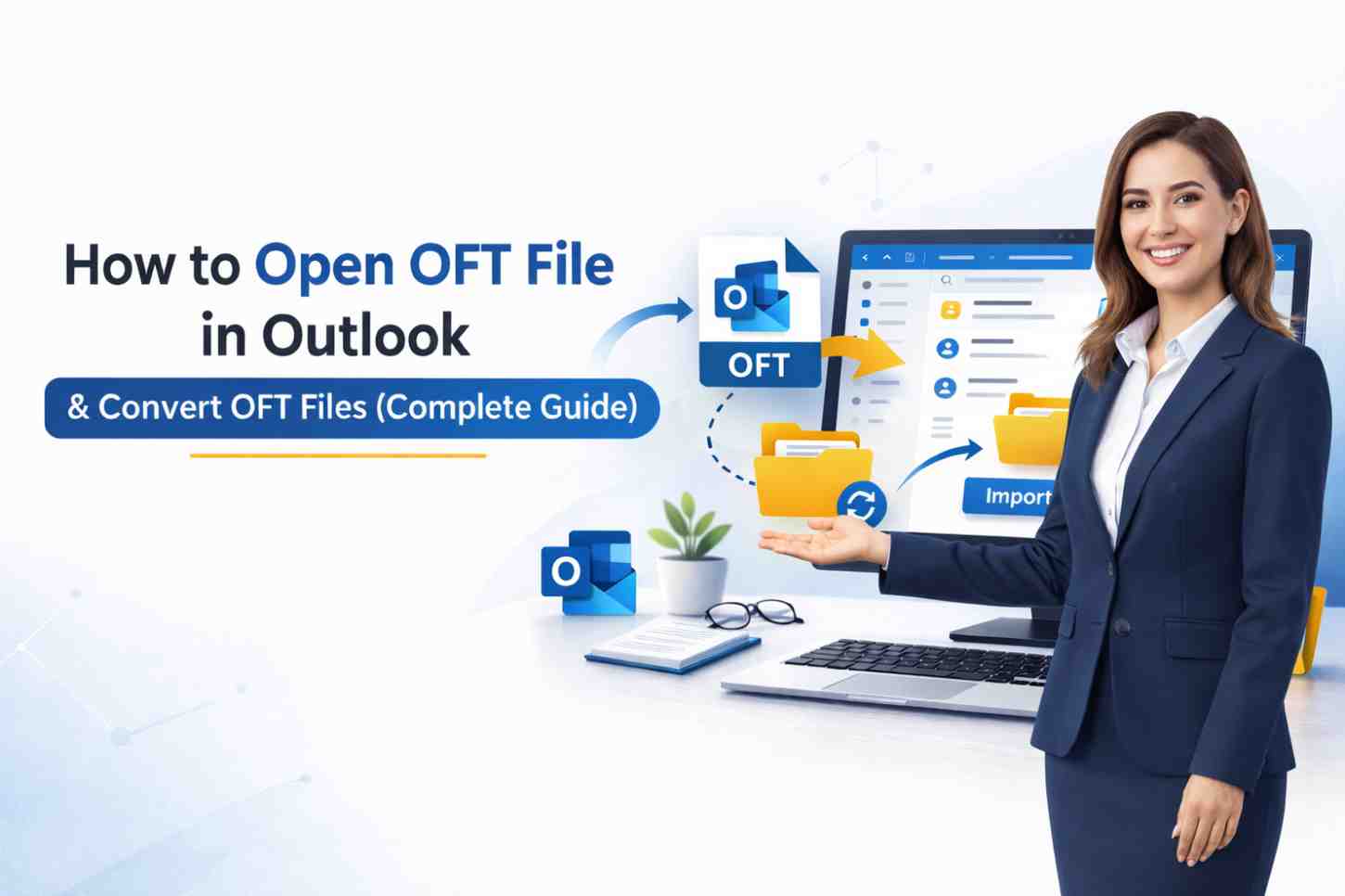
If you are searching for how to open an OFT file in Outlook, you are most probably working with an email template and do not know how to access, edit, or use it again properly. Many users don’t fully understand how the OFT files work, despite them being very common in the professional scene.
Sometimes users get Outlook OFT template not opening, formatting, or compatibility errors. Or, they have to convert OFT files into another format in case of sharing or migrating.
You will find everything about OFT files in this complete guide, from creating to opening, troubleshooting, and converting.
OFT file means Outlook File Template. It is a pre-designed email template in Microsoft Outlook, which helps the user save a well-designed email message that can be used multiple times. A saved email as an OFT file contains:
Unlike a regular email message, an OFT file does not directly send. Instead, there will always be a new draft when this file is opened. This makes it perfect for sending out a series of communications, like sales outreach messages, customer service replies, follow-ups, or internal newsletters.
OFT templates improve efficiency in professional communication. Businesses use Outlook email templates to:
If you regularly send similar letters to somebody, learning how to open an OFT file in Outlook correctly will save you hours every week.
Before opening an OFT file, one must know how to create an OFT file correctly.
Finally, your template will be saved in the default Microsoft Templates folder.
Best Practices While Creating an OFT Template
Having a properly set Outlook OFT template ensures it performs smoothly later.
Now, let’s discuss the right way to open an OFT file in Outlook.
Many users try to open the file by double-clicking on it directly, which may not work correctly depending on the settings.
Now the template will open in a new email in a draft form, and you can send it off.
If Outlook is properly configured as the default mail client, a double-click on the OFT file can be made. However, if it fails to open, one should always use Method 1.
Knowing the right way prevents making mistakes when opening the Outlook template files.
Sometimes users encounter issues where the Outlook OFT template is not working properly. Let’s look at common problems and their solutions.
Possible reasons include:
Solution:
If formatting changes unexpectedly:
Recreating the template for the current Outlook version typically solves the issues with formatting conflicts.
If your template does not appear in the list:
Default folder path:
C:\Users\YourName\AppData\Roaming\Microsoft\Templates
Often, files are primarily meant to be used by Microsoft Outlook only. However, users sometimes need to open a file with the OFT extension or convert this file to a different format without using Outlook, for example, by converting OFT to PST, MSG, or EML.
Common scenarios include:
In such cases, a professional approach like Softaken OFT Converter can be helpful in converting OFT files into various file formats. Thus, the template prepared can be used at all, even without the Outlook infrastructure.
It is imperative to consider a reliable conversion tool to ensure that data loss during the conversion process is minimized.
After completion, open a converted file from a selected folder.
Learning how to open an OFT file in Outlook is pertinent to professionals who rely on these email templates in their day-to-day communication. Therefore, learning how to open an OFT file in Outlook is crucial for professionals who rely on email templates in their daily communication because an OFT file is just an Outlook File Template that contains a reusable email draft with formatting and content.
In this guide, we covered:
Understanding these steps allows one to work with Outlook template files effectively, preventing technical mistakes and streamlining the email process. Mastering Outlook OFT templates not only saves time but also enhances professionalism in communication.
1. What opens an OFT file?
OFT files open in Microsoft Outlook.
2. Can I open an OFT file without Outlook?
Not directly. You need Outlook or a professional conversion solution.
3. Why is my OFT template not working?
Common reasons include file corruption, compatibility issues, or incorrect file location.
4. Where are OFT templates stored?
They are stored in the Microsoft Templates folder inside the AppData directory.
5. Can I convert OFT files to PST or MSG?
Yes, with the help of a professional OFT conversion tool.

© 2025 Crivva - Hosted by Airy Hosting Managed Website Hosting.