

Ever notice how your Wi-Fi feels super fast in the living room but barely works in the bedroom? Or how a Zoom call drops as soon as you move to another floor? The likely reason is that your router isn’t placed well.
Most people set it up wherever the internet cable comes in; maybe in a corner, behind the TV, or tucked under a desk. But where you put your router greatly affects how strong and stable your Wi-Fi signal is.
The good news is you don’t need to buy a new router to get faster internet; you just have to move it to a better spot. Let’s discuss how to find that ideal location to put your Wi-Fi router throughout your home.
Your Wi-Fi router sends out radio waves in all directions. Think of it like a light bulb: in the middle of the room, it lights everything evenly. But if you stick it in a corner, a lot of the light (or signal) gets wasted on the walls.
Poor placement can cause:
If you’ve been annoyed by slow internet, the problem might not be your provider; it could be where your router is located.
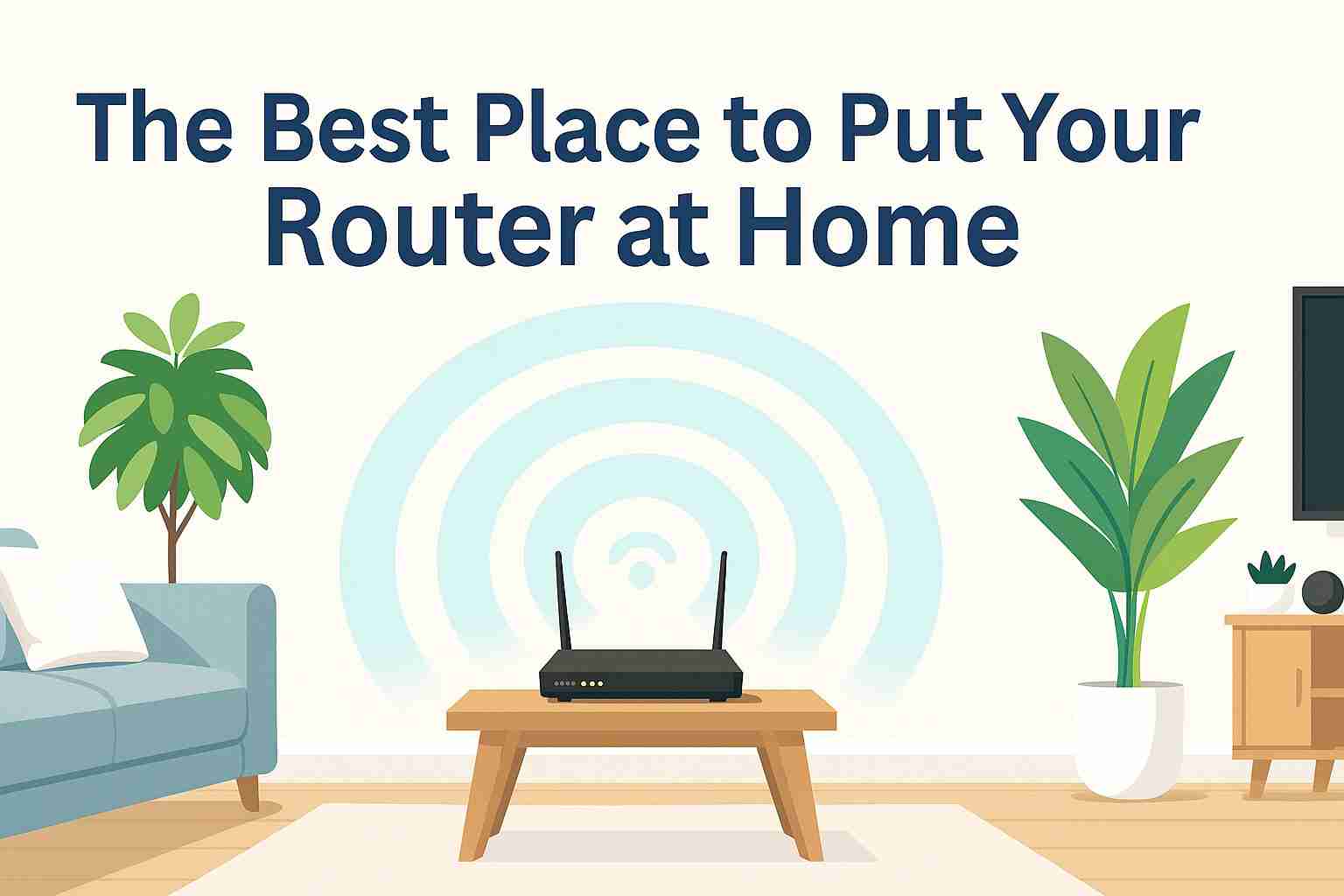
The key to strong Wi-Fi is simple: place your router as close to the center of your home as you can. Why? Because Wi-Fi signals spread in all directions up, down, and sideways. If your router is in a corner, much of the signal escapes outdoors or gets blocked by walls.
Best Practice:
This single move can make your coverage instantly more balanced and powerful.
Wi-Fi signals radiate slightly downward, so keeping your router above the floor helps it reach further. If it’s on a carpet or under a desk, nearby furniture and walls can absorb the signal before it spreads.
Try this:
An elevated router not only covers more area but also stays cooler; and cooler routers tend to work better.
Yes, routers can look unsightly, but hiding them behind furniture or inside cabinets is one of the biggest reasons for weak Wi-Fi. Closed spaces and thick walls absorb or reflect signals, causing them to bounce around instead of spreading effectively.
Avoid these common hiding places:
Instead, treat your router like a focal point. Many modern routers (like the UbiFi F1, TP-Link Archer AXE75, or Eero Pro 6) have stylish designs that suit open shelves.
Wi-Fi and other gadgets often compete for the same airwaves, especially on the 2.4 GHz band. This can create interference, leading to drops, buffering, or lag.
Keep your router away from:
Even decorative items like fish tanks can weaken signals since water absorbs Wi-Fi frequencies. Make sure to give your router enough space ideally, 3 to 6 feet from other electronics.
Every home is different, and walls, floors, and materials all affect signal strength.
If you live in a two-story home, place the router near the ceiling of the lower floor or on the floor of the upper one. This way, the signal can spread both vertically and horizontally.
In larger or oddly shaped homes, you may need mesh Wi-Fi systems or Wi-Fi extenders to reach difficult spots.
If your router has external antennas, how you angle them matters.
Even small adjustments in antenna direction can fix dead zones or weak spots.
Routers generate heat, especially during heavy use like gaming or streaming. When they overheat, they can slow down or drop connections. Avoid putting your router in tight or enclosed spaces. Let it breathe; open air helps keep it running smoothly.
If your router has vents, ensure they aren’t blocked by books or walls.
No two homes are identical, which means you may need to experiment to find the perfect spot.
Here’s how:
Even moving it a few feet can make a noticeable difference.
If your router is more than 4 to 5 years old, it may struggle to handle modern speeds or devices effectively. Newer Wi-Fi 6 routers offer better speed, range, and multi-device support.
Recommended picks:
Upgrading ensures you’re getting the full benefit of your internet plan.
Even the best router won’t perform if it’s not in the right spot. For strong, consistent Wi-Fi coverage: keep your router central, elevated, and free from obstructions. Avoid corners, clutter, and interference from electronics. Test your coverage and adjust as needed. Small changes can convert a frustrating, spotty connection into fast, reliable Wi-Fi that meets your needs whether for binge-watching Netflix, working from home, or gaming online.
Place it in a central, open area of your home, elevated off the floor, and away from walls or electronics. This ensures even coverage throughout your space.
It’s not ideal. Cabinets block Wi-Fi signals, reducing range and speed. If you must hide it, choose a mesh or open-front furniture piece that allows airflow.
Yes. These devices cause interference, which weakens Wi-Fi signals. Keep your router at least 3 to 6 feet away from large electronics.
About 3 to 5 feet above the ground works best. The higher, the better—it allows the signal to travel farther without obstruction.
Consider adding a Wi-Fi extender or switching to a mesh system to cover dead zones. Also, check your router’s firmware for updates, or think about upgrading to a newer model.

© 2025 Crivva - Hosted by Airy Hosting Managed Website Hosting.