


Ever been in the middle of streaming, gaming, or working only to have your internet slow down for no reason? Pages won’t load, videos buffer endlessly, and your Wi-Fi seems like it went back to the early 2000s.
If that sounds familiar, here’s the good news: resetting your modem and router is one of the simplest and most effective ways to fix slow internet, random drops, and weak Wi-Fi. And no, you don’t need to be tech-savvy to do it.
In this guide, you’ll learn how to reset a router and how to reset a modem correctly so your connection gets the fresh start it needs.
Think of your modem and router like small computers. Over time, they get overloaded with cached data, software issues, and network congestion. The result? Slower speeds, weaker signals, and increased lag.
A proper reset clears away that temporary clutter, giving your devices a clean slate and restoring smoother performance.
Before you start resetting things, it helps to know what each device does:
If your internet is slow or unstable, both may need a reset—not just the router.
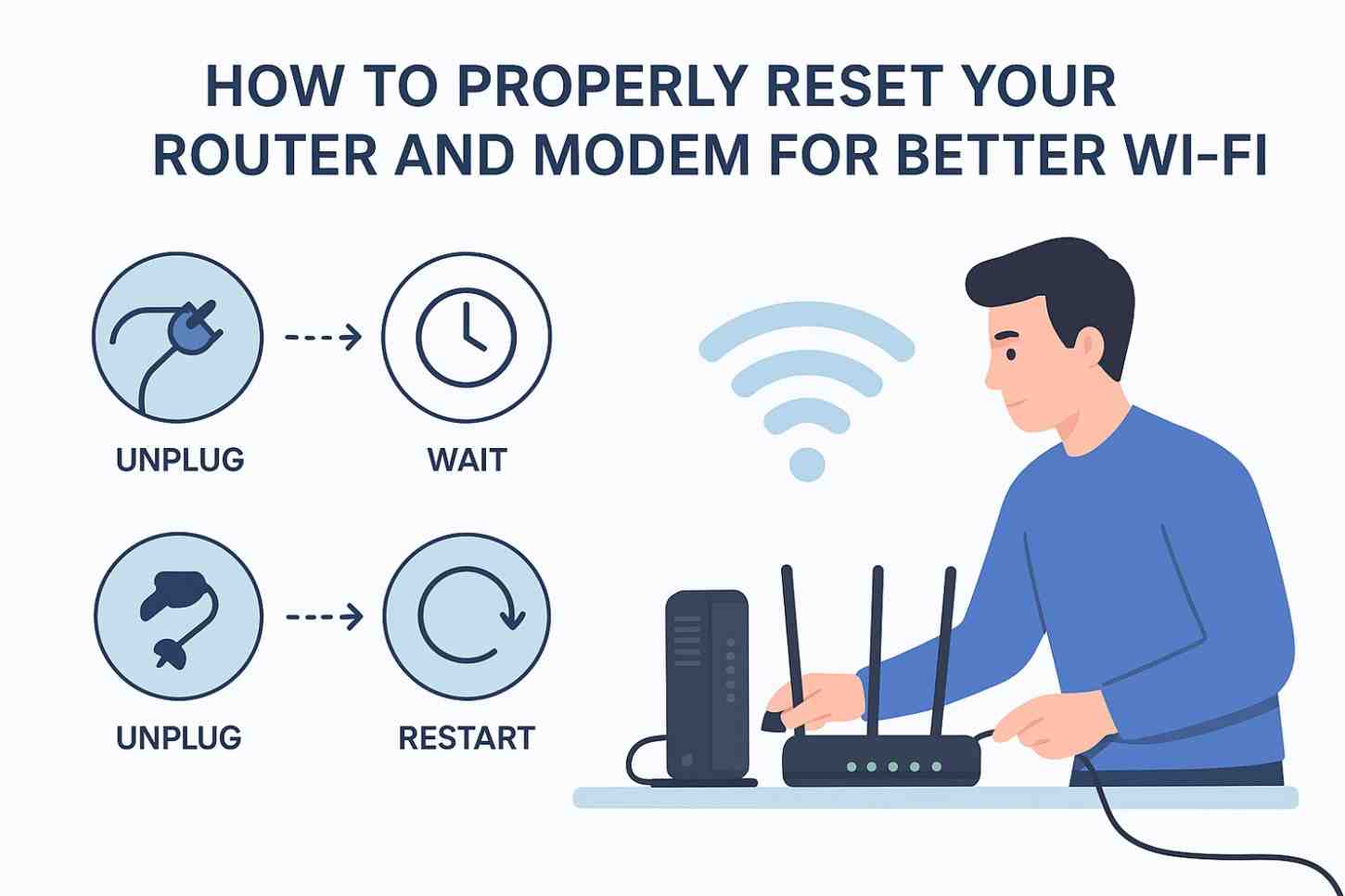
Start by turning everything off properly. Unplug your modem and router from the power outlet. Don’t just press the power button. This ensures they fully discharge and clear temporary data.
This step is essential. A full 30 seconds allows leftover electrical energy to clear from the circuits. Skipping this can make the reset incomplete.
Always start with the modem. Plug it back in, wait for it to fully boot, and watch the lights stabilize. This can take 1 to 2 minutes, depending on your model. Once the “Online” or “Internet” light is solid, you’re ready to move on.
After the modem is stable, connect your router to power. Give it a minute to broadcast Wi-Fi again. When the Wi-Fi light and Internet light are steady, your network has been rebooted.
Once both devices are online, do a quick speed test. You should notice improvements in performance.
If everything feels faster, smoother, and more responsive you’ve done it right.
This is the everyday fix most people need.
You can:
A soft reset does not erase your settings.
Use this only when necessary like when:
To do it:
To reset your router, press and hold the reset pinhole button, usually found on the back, for 10 to 15 seconds. This erases everything — Wi-Fi names, passwords, custom settings, parental controls, and so on.
Resetting a modem is similar to a router, but with slight differences:
Simple and effective for everyday slowdowns.
Only do this if:
To factory reset a modem, hold the reset button for 10 to 15 seconds until the lights flash.
Resetting too often can interrupt devices on your network, but doing it occasionally is smart.
Here are the best times to reset:
Most experts recommend resetting your modem and router once every 2–4 weeks for optimal performance.
Heat can slow down performance. Keep your router and modem in an open space. Never place them inside cabinets.
A normal reboot is enough for most issues. Full resets should only happen occasionally.
This improves speed, security, and stability. Most modern routers update automatically, but double-check through their app or admin page.
Too many devices connected can slow speeds. Turn off the devices you’re not using.
If your router is over 4–5 years old, it may not support the speeds you’re paying for.
Fixing slow internet doesn’t always need a technician, new equipment, or hours of frustration. Sometimes, all your network needs is a simple reset. By knowing how to reset a router and how to reset a modem correctly, you give your connection the refresh it needs to perform at its best.
A clean reset clears glitches, boosts speeds, improves stability, and gets your Wi-Fi running like new again.
Unplug it from power, wait 30 seconds, and plug it back in. This clears temporary glitches and restores performance.
Disconnect the modem’s power for at least 30 seconds, then reconnect it. Wait for the lights to stabilize before using the internet.
Every 2 to 4 weeks is ideal. More frequent resets may signal another underlying issue.
A simple reboot won’t change it. Only a factory reset erases passwords and settings.
It clears memory buildup, removes software glitches, and reestablishes a fresh connection with your ISP.

© 2025 Crivva - Hosted by Airy Hosting Managed Website Hosting.