

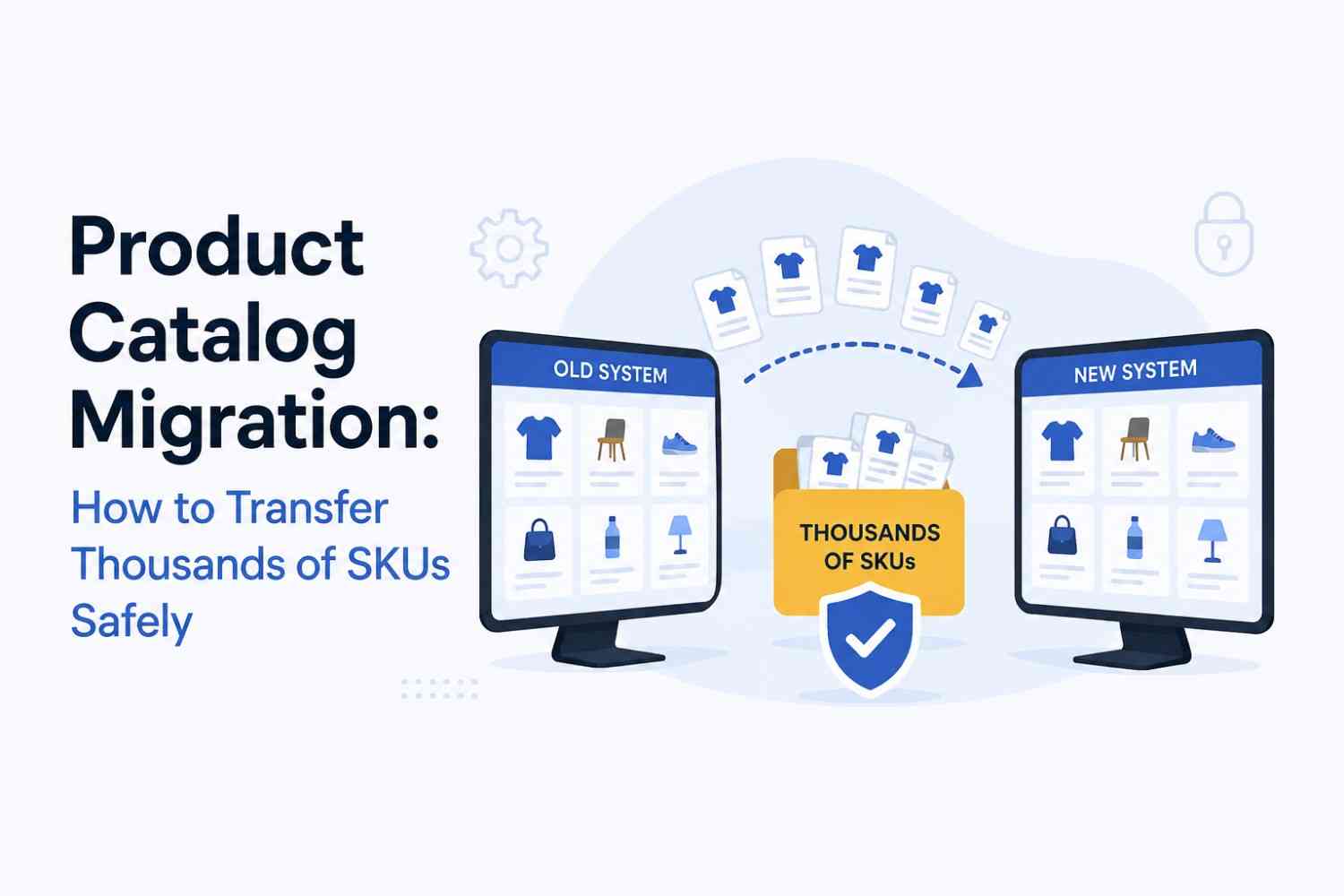
Moving an online store to a new platform is already a big task. But when your store carries thousands — or even tens of thousands — of products, the challenge becomes a whole different level. Product catalog migration is easily the most data-heavy, detail-sensitive part of any eCommerce website migration service, and it’s also the part most likely to go wrong if approached without a solid plan.
This blog walks you through exactly how to migrate a large product catalog safely: what to prepare before you start, how to handle the actual transfer, what tools help, and what mistakes to avoid.
On the surface, moving product data sounds simple. Copy the data, paste it somewhere new. Done.
In reality, it’s far more complex. A single SKU isn’t just a product name and a price. It carries:
When you multiply all of that across 10,000+ SKUs — with different structures, different image sizes, and years of accumulated inconsistencies — you start to understand why product catalog migration is the most technically demanding step of any eCommerce migration service project.
The single most important thing you can do before starting a product catalog migration is audit what you already have. According to Supportbench, before migrating any data, you should start with a full audit — identifying duplicates, outdated records, incomplete fields, and inconsistent formatting across systems. These hidden flaws can cause errors during mapping, migration, or validation.
This means going through your existing catalog and asking:
Cleaning up your catalog before migration is not optional — it’s the foundation of everything that comes after.
Once your catalog is clean, you need to figure out how each data field in your old platform maps to a field in your new one. This is called data field mapping, and it’s where most mid-migration surprises come from.
Every eCommerce platform organizes product data differently. Magento, Shopify, WooCommerce, and BigCommerce all use different field names, data structures, and attribute systems. What your old platform calls “product_short_desc,” your new platform might call “summary” — or it might not have that field at all.
Before migrating a single SKU, make sure your data fields match across both platforms. Document every mapping decision in a spreadsheet so nothing falls through the cracks.
Pay special attention to:
Not all migration methods work equally well at scale. The right approach depends on how many SKUs you’re moving and how complex your product data is.
This is the most common method for small to mid-sized catalogs. You export product data from your old platform into a CSV file and import it into the new one. It works well up to a few thousand products, but it has limitations — image URLs don’t always transfer cleanly, and complex variant structures often don’t map perfectly through CSV alone.
For larger catalogs, tools like Matrixify, Cart2Cart, and LitExtension handle the transfer programmatically. As one experienced eCommerce developer shared on Medium, Matrixify can process 40,000+ products reliably without breaking — but even with tools, you still need to double-check field mappings manually before running a full migration.
For enterprise catalogs with deep integrations, complex product structures, or ERP connections, custom API scripts give you the most control. They’re slower to set up, but they handle edge cases that automated tools can’t — like syncing subscription products, mapping ERP fields, or managing multi-warehouse inventory levels.
As a rough guide:
Images are one of the most common points of failure in a product catalog migration. They’re large, they need to be linked correctly to each SKU, and they often live on a CDN or external server that needs to be referenced differently on the new platform.
Here’s what commonly goes wrong:
Before migration, export all product images to a backup folder. Verify that every image file is accounted for and accessible. On the new platform, set up image hosting properly before importing product data so image URLs resolve correctly from day one.
Once the full catalog has been migrated to your staging environment, you need to validate it thoroughly. Don’t just spot-check ten products and call it done. With thousands of SKUs, validation needs to be systematic.
Use these checks:
Running a pre-launch crawl with a tool like Screaming Frog can also help identify broken links, missing metadata, and redirect issues before customers ever see the new store.
For stores with a few hundred products and a simple structure, a well-organized DIY migration using automated tools is achievable. For anything more complex — large catalogs, custom attributes, multi-warehouse inventory, ERP integrations — working with professional eCommerce migration services dramatically reduces risk and saves time.
Migrating thousands of SKUs safely isn’t about moving fast — it’s about moving right. A thorough data audit, careful field mapping, proper use of migration tools, rigorous testing, and disciplined SEO preservation are what separate a smooth catalog migration from a costly disaster.
If your catalog is large or complex, partnering with experienced eCommerce migration services is one of the smartest decisions you can make. The technical complexity is real — and the cost of getting it wrong is far higher than the cost of getting it right.
Q1. What data is included in a product catalog migration?
A full product catalog migration covers product titles, descriptions, SKU codes, pricing, inventory levels, product variants, images, categories, tags, custom attributes, SEO metadata (meta titles, descriptions, URL slugs), and any related product links. The exact scope depends on your platform and catalog structure.
Q2. How long does it take to migrate a large product catalog?
For a catalog of under 500 products, migration can be completed in a few days. For 500–10,000 products, expect 1–3 weeks for the data migration phase alone. Catalogs exceeding 10,000 SKUs with complex attributes and integrations can take 3–6 weeks or longer, especially when combined with QA and SEO validation.
Q3. Can I migrate product data without any downtime?
Yes, in most cases. By migrating to a staging environment first and switching over once the new store is fully validated, you can keep your live store running throughout the process. Downtime, if any, is typically just a brief DNS propagation window.

© 2025 Crivva - Hosted by Airy Hosting Managed Website Hosting.