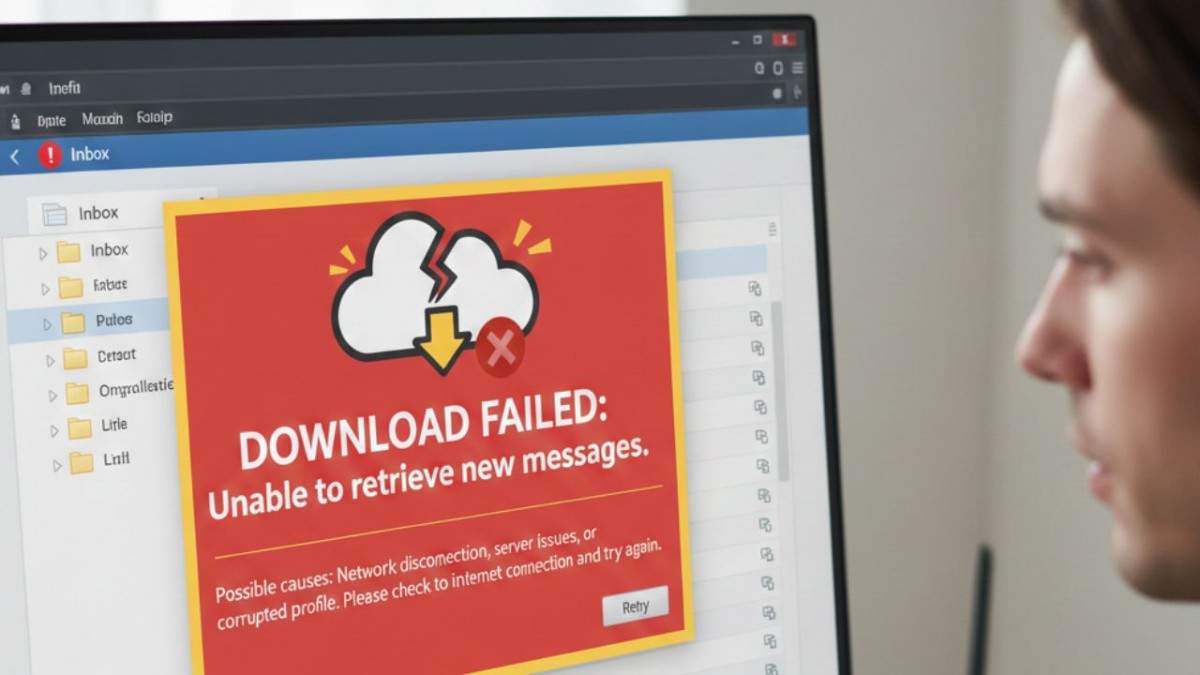
If your thunderbird stop downloading messages out of nowhere, it feels like being cut off from the world. You know people are emailing you, but your inbox stays stubbornly empty. This isn’t just a minor glitch; it’s a disruption to your workflow. Usually, this happens because of a breakdown in communication between the software and the mail server. It could be a wrong password, a full disk, or even a single corrupted file acting like a dam in a river.
Here’s the thing: Mozilla Thunderbird is a workhorse, but like any long-running application, it can get bogged down by its own data. According to recent user data from open-source communities, nearly 40% of email client issues stem from local configuration errors rather than actual server downtime. We are going to look at why Thunderbird stops downloading emails and how you can get those messages flowing back into your folders. Let’s break it down into steps that actually make sense.
Before we start tearing apart your settings, let’s rule out the obvious. Is your internet actually working? Sometimes we overlook the simplest explanation. If your connection is solid, the next step is to check if the mail server is down. If the server is offline, you’ll find that Thunderbird not downloading messages is a problem shared by everyone using that specific provider (like Gmail or Outlook).
Check the bottom status bar in Thunderbird. Does it say “Connected to…” or does it show a timeout error? If it’s a Thunderbird server connection problem, try logging into your webmail through a browser. If you can see new emails there but not in the app, we know the issue is local. This confirms a Thunderbird email fetching issue that requires a deeper look into your internal settings and you can convert Thunderbird files as well.
A very common reason for Thunderbird not receiving new emails is an expired or stuck authentication token. This happens a lot with providers using OAuth2. Thunderbird might be trying to use an old “key” to open the door, and the server is simply ignoring the request.
If you use a Master Password, ensure it hasn’t been changed or corrupted. Sometimes, clearing the saved passwords in Settings > Privacy & Security > Saved Passwords and restarting the app forces a fresh login prompt. This simple “reset” often fixes the Mozilla Thunderbird not downloading emails error because it establishes a brand new, secure handshake with the server. It’s a quick win that saves a lot of time.
How your email is set up matters a lot. If you have a Thunderbird IMAP not downloading emails situation, it’s usually a synchronization folder issue. IMAP is supposed to mirror the server. If the folder subscription is unchecked, Thunderbird won’t even look for new mail in those folders. Right-click your account name, select “Subscribe,” and make sure all your folders are ticked.
On the flip side, a Thunderbird POP not downloading messages problem is often related to the popstate.dat file. This file tracks which emails have already been downloaded. If it gets corrupted, Thunderbird might think it has already “seen” everything on the server, resulting in a Thunderbird download messages problem. Deleting this file (while Thunderbird is closed) forces the client to re-check the server for everything.
Thunderbird doesn’t actually delete an email from your hard drive when you hit the delete button; it just marks it as hidden. Over time, your inbox file grows massive, leading to a Thunderbird stuck downloading messages loop. The program is trying to write new data to a file that is bloated and inefficient.
What this really means is you need to “Compact” your folders. Right-click your Inbox and select “Compact.” This clears out the “hidden” deleted mail and shrinks the file size. Many users find that Thunderbird inbox not loading emails is instantly resolved once the database is lean again. Think of it like taking the trash out so you have room to put new groceries in the fridge.
If your search is slow and you have a Thunderbird not updating inbox issue, the Global Database (Gloda) might be the problem. This is an index file that helps Thunderbird organize your mail. If it breaks, the whole “fetching” process can stall.
To fix a Thunderbird sync issue IMAP, you can rebuild this index. Close Thunderbird, go to your Profile Folder, and find a file named global-messages-db.sqlite. Delete it. When you restart Thunderbird, it will rebuild this file from scratch. It might take a few minutes to re-index, but it often clears up a Thunderbird email synchronization error that other methods miss.
Your antivirus might be too good at its job. Some security suites intercept encrypted email connections to scan for viruses. This “Man-in-the-Middle” scanning can cause a Thunderbird unable to download emails error because the security certificate doesn’t match what Thunderbird expects.
If you suspect this, try disabling your antivirus mail shield for five minutes and click “Get Messages.” If the emails flood in, you’ve found your culprit. You’ll need to add an exception for Thunderbird or import the antivirus’s root certificate into Thunderbird’s certificate manager to fix the Thunderbird download headers only snag.
Sometimes, an update (either to Thunderbird or your email provider) changes the required security settings. If you’re seeing a Thunderbird account not syncing properly, double-check your port numbers.
If these are wrong, you’ll face a Thunderbird mailbox not updating message indefinitely. What’s more, ensure your “Authentication method” is set to what your provider requires—usually “Normal password” or “OAuth2.” Incorrect settings here are the primary cause of a Thunderbird offline mode emails not downloading glitch where the app thinks it can’t reach the world.
If you have tried everything and Thunderbird stuck on “downloading messages” still haunts you, your profile might be beyond repair. But don’t worry—this doesn’t mean you lose your emails. Thunderbird allows you to create a new “Profile” while keeping the old data safe.
Open the Profile Manager (run thunderbird.exe -p in Windows) and create a new profile. Set up your email account again. If it works perfectly, you know the old profile had a Thunderbird corrupted inbox file. You can then migrate your local folders and contacts to the new, clean profile. This is often the fastest way to fix Thunderbird email download issue on Windows when the configuration has become a tangled mess. You can fix existing hyperlinks that are not working in Thunderbird
To prevent a future Thunderbird message filter issue or sync lag, keep your folders organized. Don’t let your Inbox hold 50,000 emails. Move them to “Archive” or custom subfolders. This keeps the primary database files small and responsive.
Regularly check for updates. Mozilla releases patches frequently to address why Thunderbird stopped downloading messages for specific providers like Yahoo or Gmail. Staying updated ensures your “handshake” with the server uses the latest security standards.

© 2025 Crivva - Hosted by Airy Hosting Managed Website Hosting.