


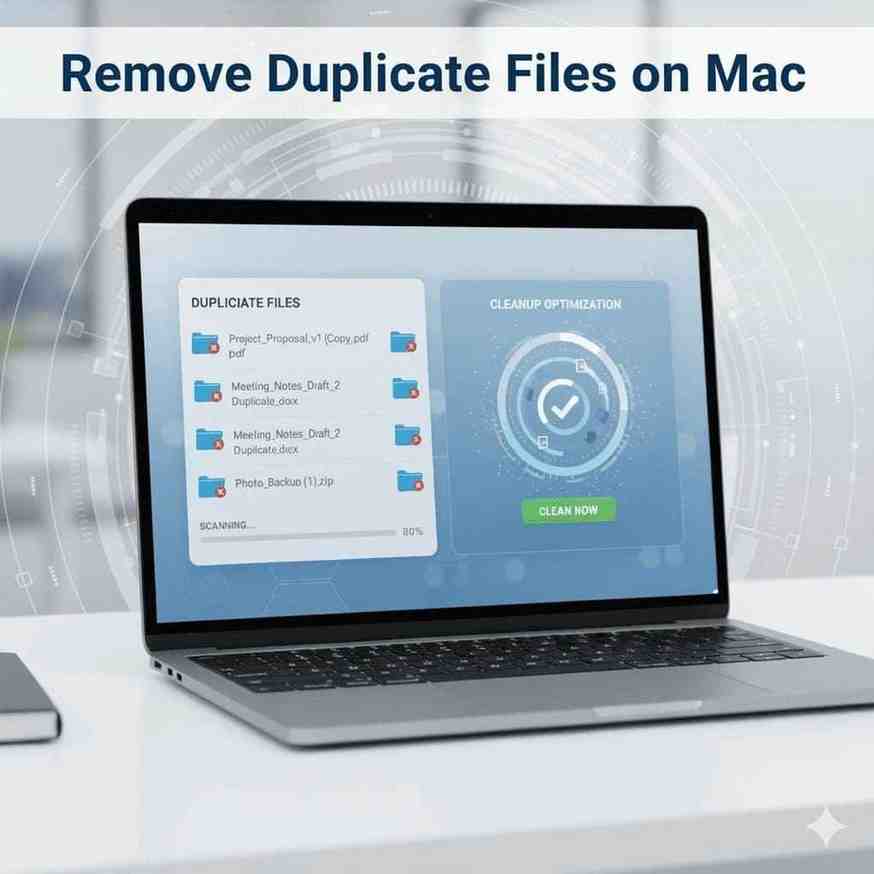
Duplicate files are one of the leading causes of reduced storage and performance issues on macOS devices. Whether it is pictures, videos, documents, or even the same downloads, these extra copies silently take up precious disk space. Over time, they will slow down your system, create problems with iCloud syncing, and make file management annoying.
If you struggle with the laborious process of remove duplicate files on your Mac, this detailed guide will go over manual and automated ways to identify, manage, and permanently delete duplicate files quickly and safely.
You don’t realize how quickly duplicates pile up. Every time you download the same attachment twice, import photos from your iPhone, or copy files across folders, duplicates are created. These unwanted files can add up and take up several gigabytes of space.
Here’s why you should clean up duplicate files on your Mac:
By cleaning up duplicates you’ll keep your Mac optimized and organized—save time and speed.
If you only have a few files to check, you can manually delete duplicate files on Mac using Finder. Here’s how:
This will work for small sets of files, not for large folders and thousands of files. Manual cleanup can also be a bit dangerous because you may delete the wrong file.
For users who need a quicker and safer solution, the automated duplicate file remover is the way to go.
The best way to remove duplicate files on Mac is by using a professional duplicate cleaner. Tools like Cigati Duplicate File Finder make it easy.
This advanced software scans your entire Mac for identical files based on content, not just file name or extension. Here’s what sets it apart:
Use Cigati’s tool and clean up your Mac and free up space in minutes.
Barring the use of third party tools, there are a few other ways to tackle the problem:
Your Mac comes with a handy feature called Smart Folders – a way to keep your files in order based on specific details. You can set up Smart Folders to root out duplicates by name, type or size. Just don’t forget its a manual job to get rid of the unwanted ones.
If you’re feeling adventurous, and comfortable with Terminal, you can try using commands like fdupes to find duplicate files. Just be careful – command line tools can be a bit of a mine field if you’re not familiar with them.
Duplicate files can pop up when you sync your music or import photos into iTunes or the Photos app. To spot identical images, open up Photos and have a look at View > Show Duplicate Items. There’s also a similar option in iTunes to sort and find duplicate songs.
If you’re looking for a detailed guide on how to delete duplicate files from your Mac, there’s a more in-depth walkthrough waiting for you in this comprehensive guide on how to delete duplicate files on a Mac.
While most duplicates occur in photos and media, data files, such as CSVs, can have duplicate entries. If you handle large contact or spreadsheet files, removing duplicate records is essential in ensuring the accuracy of your data.
For that, refer to the helpful article Remove Duplicates from CSV Files explaining how you can efficiently clean up, merge, and organize CSV data using simple tools and techniques.
Once you’ve cleaned up your Mac, it is vital not to create duplicates anymore in the future. Here are some quick tips:
Follow these, and you’ll not only avoid creating duplicates but also keep your Mac running at peak performance.
The management of storage has become a very important aspect in keeping Macs running. Duplicate files build up in no time and occupy a lot of space, which badly affects the performance of the system. Manual deletion works for small quantities of data, but automated tools like Cigati Duplicate File Finder are the easiest and most reliable options.
It helps you remove duplicate files on Mac efficiently, ensures no data of importance is lost, and even allows you to delete duplicates with one click.
You can also refer to how to delete duplicate files on Mac for more detailed guides and cleanup tutorials, or learn to remove duplicates from CSV files by using safe and professional methods.
Keep your Mac organized, fast, and clutter-free because a clean system is always at its best.

© 2025 Crivva - Hosted by Airy Hosting Managed Website Hosting.