


Haven’t read Part I yet? Start here to understand how the AI-powered code review agent was built. We built all the core components for our AI agent example
Now in Part 2, we’ll bring it all together by building the MCP server, configuring Claude Desktop, and testing our complete AI agent.
Now we create the MCP server that ties everything together. This is the primary entry point through which Claude Desktop communicates.
Exposes code review functionality as MCP tools, which Claude Desktop can call using natural language.
This process supports MCP server integration and helps streamline workflows in AI-powered software development.
from mcp.server.fastmcp import FastMCP

mcp = FastMCP(name="Code Reviewer")
active_reviews = {}

@mcp.tool()
def detect_tech(project_path: str) -> str:
    """
    Detect technology stack from a project file (e.g., package.json, pyproject.toml).

    Args:
        project_path: Absolute path to a project configuration file (not a directory)

    Returns:
        JSON string with detected technology, frameworks, and confidence
    """
    try:
        path = Path(project_path)
        if path.is_dir():
            return json.dumps({"error": "project_path must be a file, not a directory. ..."})

        if not path.exists():
            return json.dumps({"error": f"File does not exist: {project_path}", ...})

        # Get the parent directory for detection
        project_dir = str(path.parent)
        result = detect_technology(project_dir)
        return json.dumps(result, indent=2)
    except Exception as e:
        return json.dumps({"error": str(e), ...})

# Entry point
if __name__ == "__main__":
    mcp.run()
Create main.py with the complete MCP server implementation, including all five tools:
Note: Full implementation available in the GitHub repository.
After setting up your MCP server and exploring the available tools, learn how to integrate and test your MCP server setup with real-world AI agents through our expert MCP server development consultation services.
Now we need to tell Claude Desktop how to launch our MCP server
The config file location depends on your operating system:
Windows:
%APPDATA%\Claude\claude_desktop_config.jsonmacOS:
~/Library/Application Support/Claude/claude_desktop_config.jsonLinux:
~/.config/Claude/claude_desktop_config.jsonEdit the config file and add this configuration. Adjust the path to match your actual project location:
For Windows:
{
  "mcpServers": {
    "mcp-code-reviewer": {
      "command": "uv",
      "args": [
        "--directory",
        "C:\\Users\\YourUsername\\code\\mcp-code-reviewer",
        "run",
        "mcp-code-reviewer"
      ],
      "env": {
        "DANGEROUSLY_OMIT_AUTH": "true"
      }
    }
  }
}
For macOS/Linux:
{
  "mcpServers": {
    "mcp-code-reviewer": {
      "command": "uv",
      "args": [
        "--directory",
        "/Users/yourname/code/mcp-code-reviewer",
        "run",
        "mcp-code-reviewer"
      ],
      "env": {
        "DANGEROUSLY_OMIT_AUTH": "true"
      }
    }
  }
}
Configuration Notes:
After saving the config file:
You can verify the connection by looking for your MCP server in Claude Desktop’s interface.
Go to the Settings
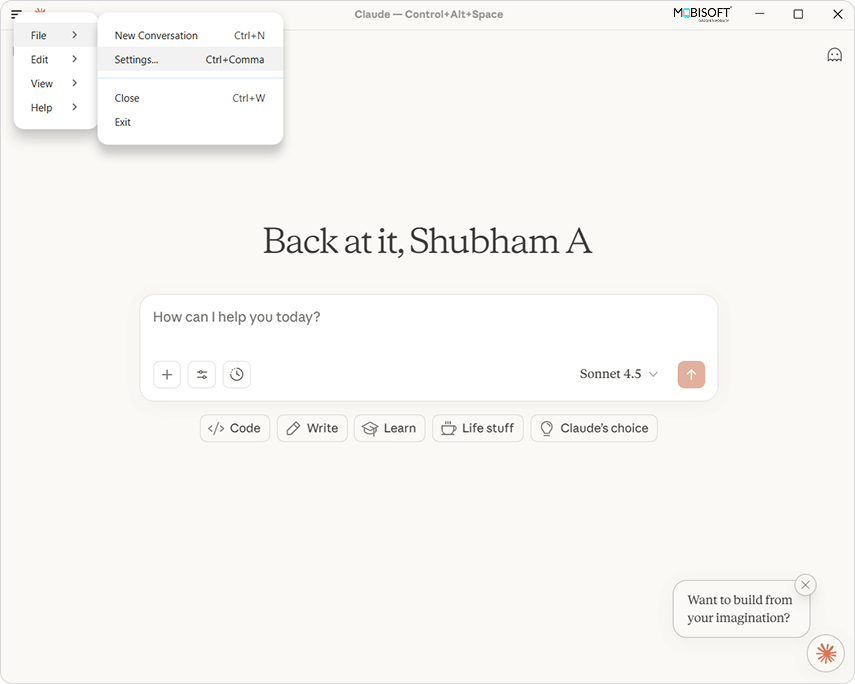
Settings will look like this, and click on the Developer option
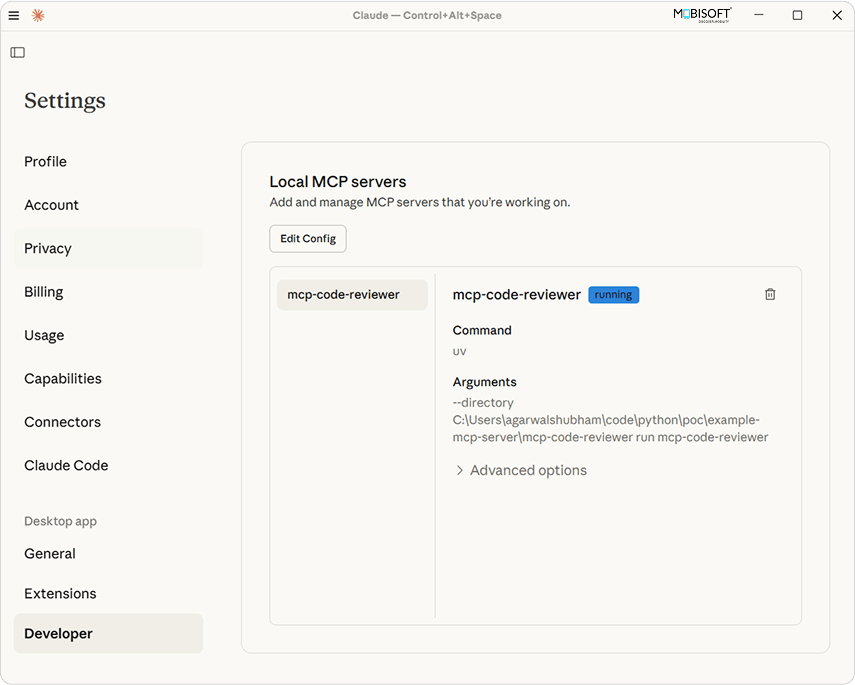
You can verify by running the status of your local MCP server.
If the status is Failed, check the config file, close the Claude app from Task Manager, and start again.
This confirms your MCP server is properly configured and running.
Follow Docker optimization strategies to ensure smooth deployment of your AI-powered MCP server.
You have two ways to test your code review agent: using the MCP Inspector for debugging, or through Claude Desktop for production use.
Both methods ensure your AI agent integration works smoothly before going live.
Before integrating with Claude Desktop, you can test your MCP server using the built-in inspector. This is useful for development and debugging.
Start the MCP server in development mode:
uv run mcp dev main.py
This will start the MCP proxy server and inspector. You’ll see output similar to:
Starting MCP inspector...
Proxy server listening on 127.0.0.1:6277
Session token: 79be2f530f51620ccfdc0a8b43f2c7bb31ac57b09a8649820ee8e4630f596b32
Use this token to authenticate requests or set DANGEROUSLY_OMIT_AUTH=true to disable auth


Open inspector with token pre-filled:
   http://localhost:6274/?MCP_PROXY_AUTH_TOKEN=79be2f530f51620ccfdc0a8b43f2c7bb31ac57b09a8649820ee8e4630f596b32


MCP Inspector is up and running at http://127.0.0.1:6274
Understanding the Output:
Using the Inspector:
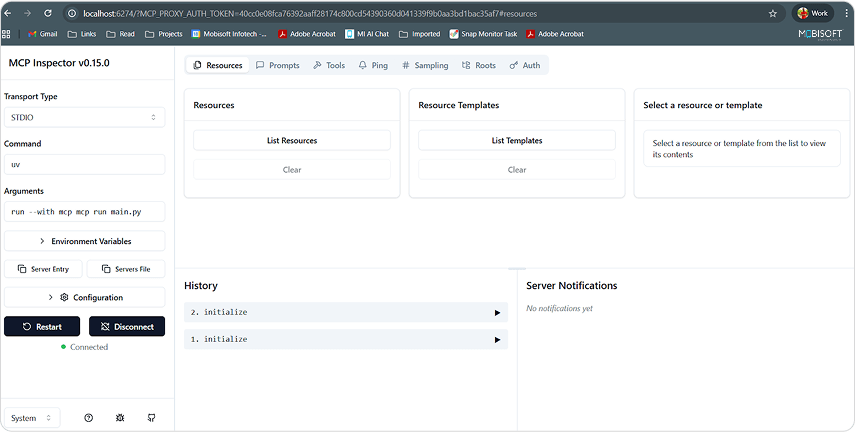
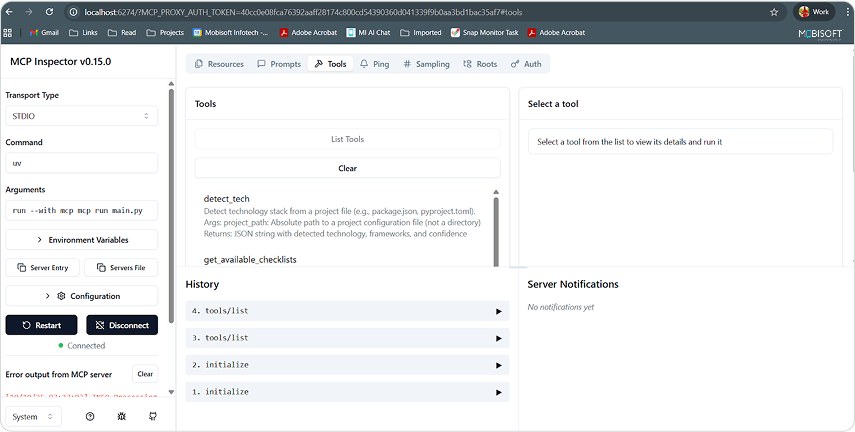
This is an excellent way to debug your tools before deploying to Claude Desktop.
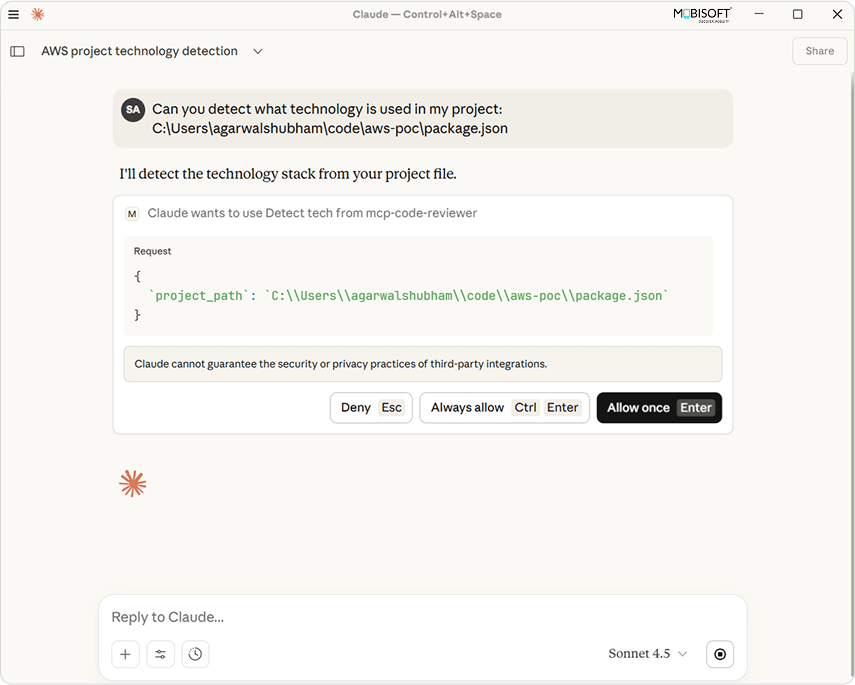
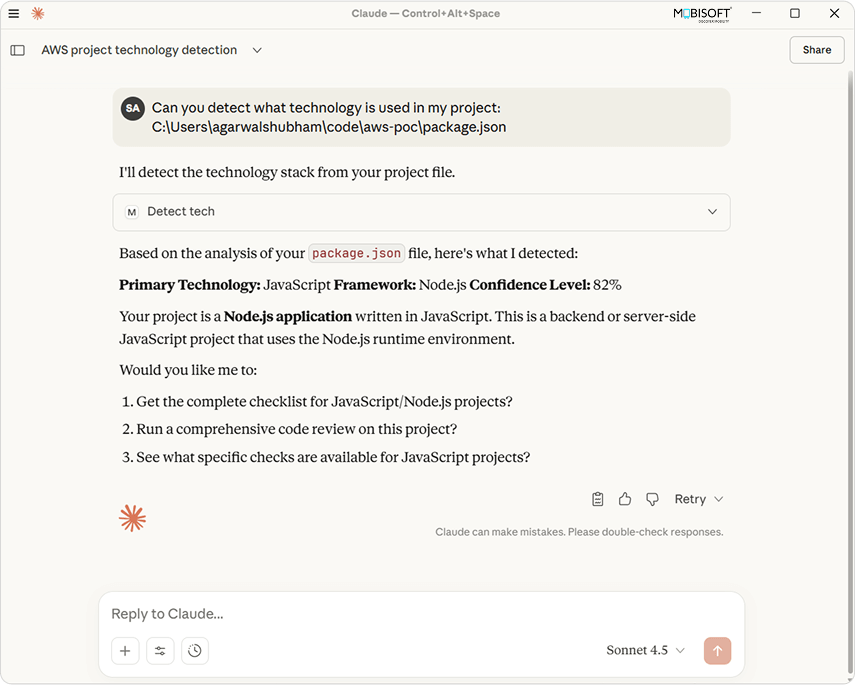
Once Claude Desktop restarts with your MCP server configured, you can test it using natural language.
You: “Can you detect what technology is used in my project? The main config file is at /path/to/project/package.json”
Claude will:
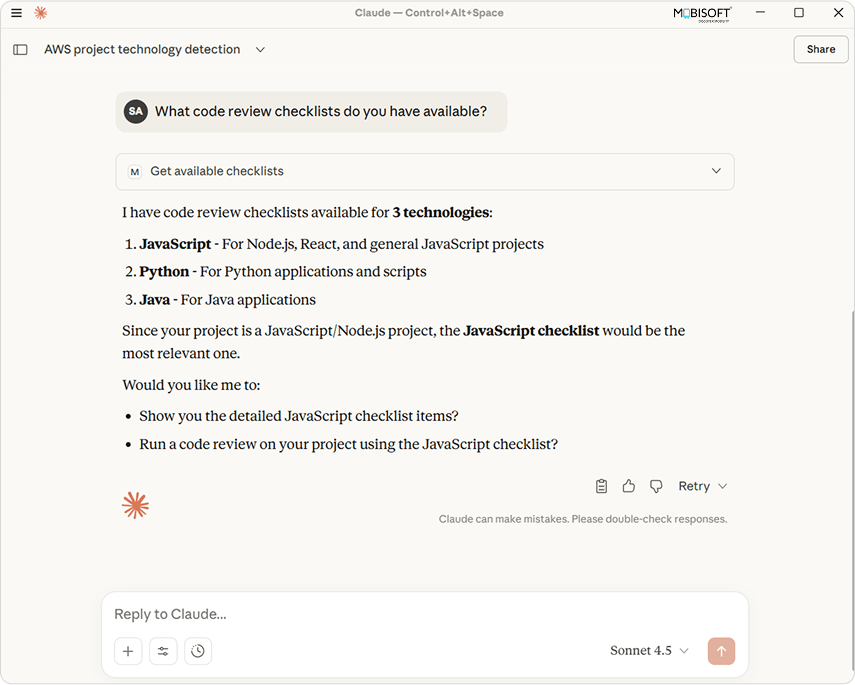
You: “What code review checklists do you have available?”
Claude will:
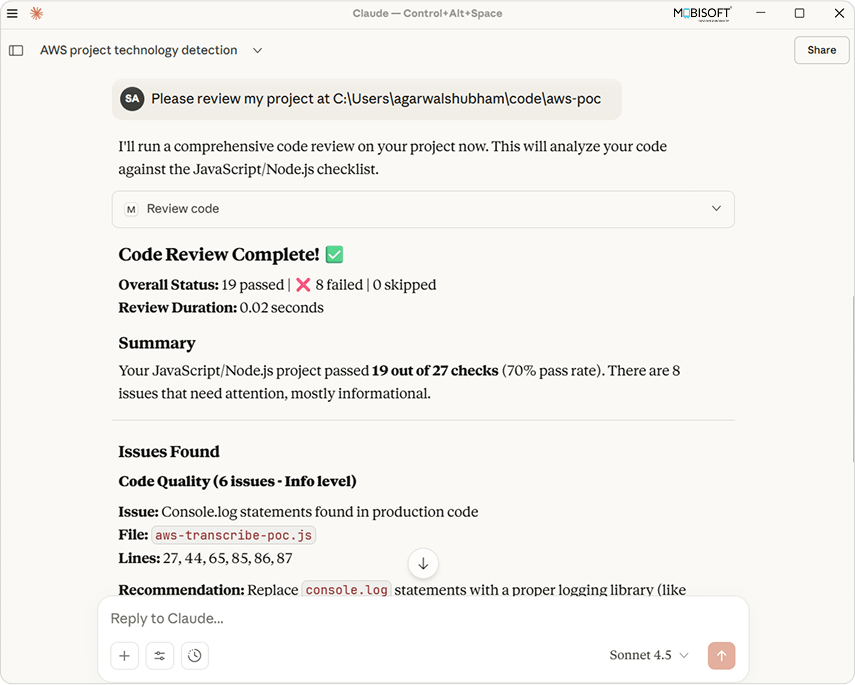
You: “Please review my project at /home/user/myproject”
Claude will:
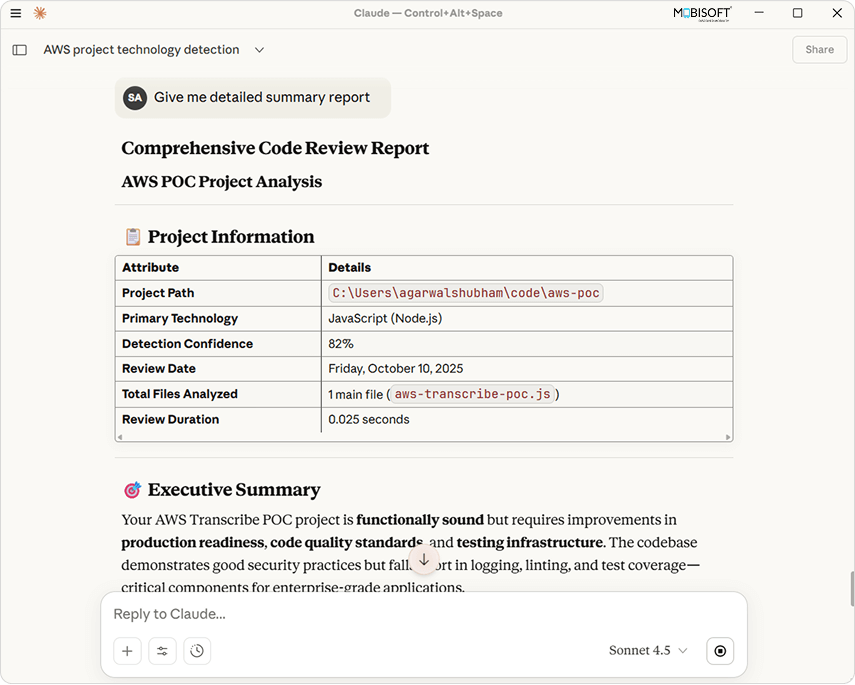
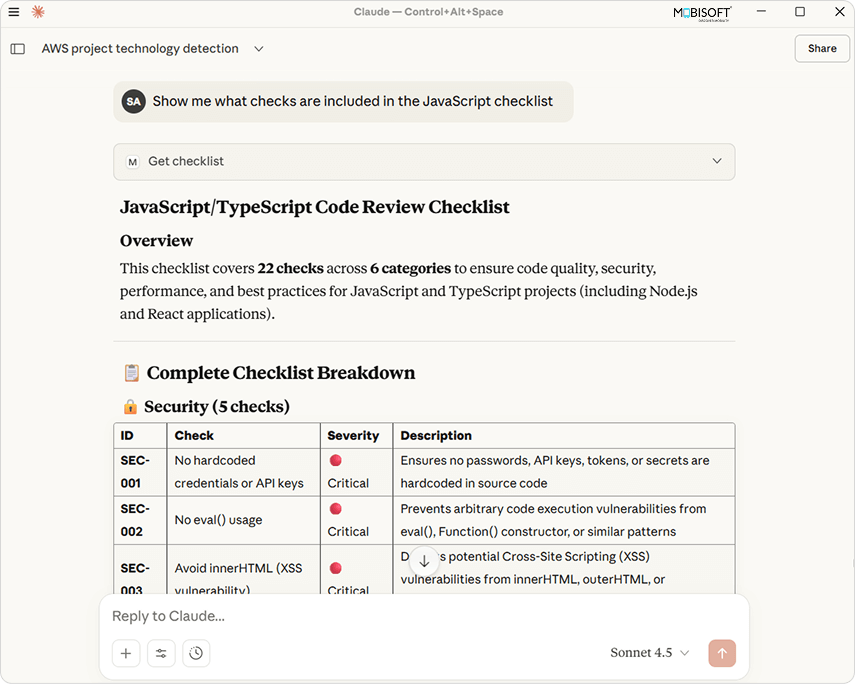
You: “Show me what checks are included in the JavaScript checklist.”
Claude will:
See how our AI services support end-to-end development, testing, and deployment of custom agents to accelerate your AI projects.
Here are solutions to common problems you might encounter.
Problem: The detect_tech tool times out when you pass a directory path like.
Why it happens: Recursive file scanning with rglob() can be very slow on large directories, especially if there are many files or nested directories like node_modules.
Solution: Our implementation requires a file path instead of a directory path. Pass a specific file like:
The detector will use the file’s parent directory for analysis, which is much faster.
Problem: YAML parser fails with an error like “expected block end, but found ‘]'”
Why does it happen:
Solution:
Correct YAML:
patterns:
  - "\\beval\\("
  - "password\\s*=\\s*[\"'][^\"']+[\"']"
Incorrect YAML:
patterns:
  - '\beval\('   # Single quotes with special chars
  - 'password\s*='  # Not enough escaping
Problem: Error message “failed to remove file .venv/lib64: Access is denied”
Why it happens: Windows does not support Linux-based symlinks. And so when the .venv directory is created in the WSL (Linux), the Claude Desktop (Windows) attempts to utilize it, resulting in an error.
Solution:
# Delete the existing .venv directory
rm -rf .venv

# Restart Claude Desktop
# It will create a fresh Windows-compatible virtual environmentProblem: Error like “cannot import name ‘main’ from ‘main'” or “ImportError”
Why it happens: The entry point in pyproject.toml doesn’t match the actual code structure.
Solution: Make sure your pyproject.toml has the correct entry point:
[project.scripts]
mcp-code-reviewer = "main:mcp.run"
This points directly to the run() method on the mcp object in main.py. After changing this, delete .venv and restart Claude Desktop.
Problem: ModuleNotFoundError: No module named ‘yaml’ or similar
Why it happens: The virtual environment utilized by Claude Desktop does not have the required dependencies.
Solution:
# Navigate to your project directory
cd mcp-code-reviewer

# Delete existing virtual environment
rm -rf .venv

# Reinstall dependencies
uv sync

# Restart Claude Desktop
Problem: Claude Desktop shows the server as disconnected or not starting
Solution:
Now that you have a working code review agent, here are ways to extend and improve it:
Create new checklist files for other languages:
Update technology_detector.py to recognize these languages.
Implement specialized validators for:

© 2025 Crivva - Hosted by Airy Hosting Managed Website Hosting.